Celestial Atlas › Learn › How to use Celestial Atlas: controls, shortcuts and tips
How to use Celestial Atlas: controls, shortcuts and tips
Celestial Atlas has one timeline, one play button and five views. Drag to look around, scroll or pinch to zoom, click a body to learn about it, tap the clock to travel in time, and open the Guide for a live description of whatever is on screen. This page lists everything.
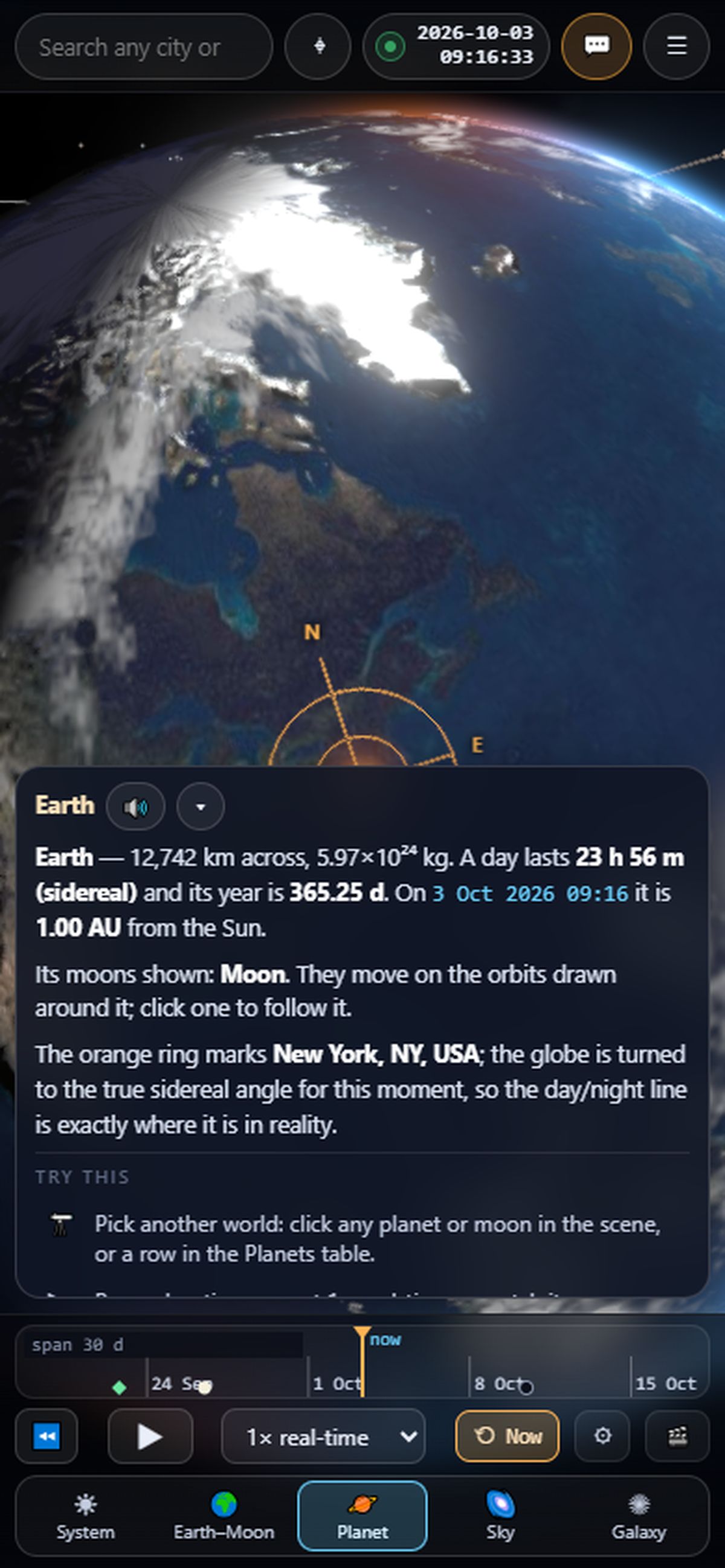
The screen
- Top bar — home, place search (city, or ⌖ for your device location or exact latitude/longitude), the clock (opens time travel), Guide and the menu.
- Dock (bottom) — the timeline, then the transport (⏪ reverse, ▶ play, speed, ⟲ Now), five view buttons, Options and the cinematic Tour.
- Side panels — location and weather, the selected body, Sun & Moon data, eclipses and the planets table (on phones, open them from the menu).
- Tools (bottom right / top right on phones) — ✥ Move, ⌖ Recenter and ☀ Sun's life.
Moving the camera
| Action | Mouse / trackpad | Touch |
|---|---|---|
| Look around / orbit | Drag | One-finger drag |
| Zoom | Scroll wheel | Pinch |
| Pan across space | Right-drag, Shift-drag, or ✥ Move then drag; W A S D | Two-finger drag, or ✥ Move then one finger |
| Fly to a body | Double-click it, or click a row in the planets table | Double-tap |
| Recenter | ⌖ Recenter or C | ⌖ Recenter |
| See a button's live effect | Hover | Long-press |
Time
Click the clock for the date, time and ISO fields, step chips, event jumps (eclipses, Moon phases, solstices, oppositions…) and famous moments. Use Space to play/pause, R to reverse, N to return to now, ←/→ to step a day, ↑/↓ an hour, and Shift with the arrows to step a month or a year. In the Galaxy view the same buttons run galactic time; in the collision view they run billions of years. Learn more in time travel.
The five views
- System (1) — the solar system from above; add the planets' helix or compare flat versus helix. See 3D solar system.
- Earth–Moon (2) — true-scale Earth and Moon with eclipse shadow cones.
- Planet (3) — fly to any planet or moon.
- Sky (4) — the sky above your place; aim at the Sun or Moon or the compass points.
- Galaxy (5) — scales: Planets · Stars · Milky Way · Neighbours · Local Group · Galaxies · Laniakea · Collision. See Milky Way, Local Group and collision.
The live guide and tooltips
The Guide card describes what is on screen right now from live data: distances, light-travel times, the Moon's phase, the planets above your horizon, where the Sun is in the Galaxy, or the stage of the Sun's life. Under “Try this” it offers one-tap actions. The speaker button reads the text aloud using your browser's voice (off by default). Hover or long-press any button for a tooltip showing its current value. Key G shows or hides the guide.
Tour and narrated story
Tour flies a cinematic route with captions from the Earth through the Moon, Jupiter, Saturn, the helix, the Galaxy, neighbours, the Local Group, Laniakea, the collision and the Sun's death. Menu ▸ Narrated story runs the same tour hands-free with read-aloud on.
Troubleshooting
- Blank screen — the atlas needs WebGL2 and loads two libraries from a CDN; check that your browser and network allow them.
- Slow on an old device — the atlas lowers its resolution and switches off bloom automatically; you can also switch bloom off in Options.
- No weather — the weather service may be offline or rate-limited; the rest of the app keeps working.
Frequently asked questions
How do I change the date?
Click the clock at the top right, then edit the date and time fields or type an ISO date; the whole scene jumps to that moment.
How do I look at a different place?
Type a city in the search box, press ⌖ to use your location, or enter exact latitude and longitude.
Does Celestial Atlas work on a phone?
Yes. It is designed for phones as well as desktops, with one-finger orbit, pinch zoom, two-finger pan and a collapsible guide.
Can I use it in another language?
Yes: menu ▸ Language switches between English, Spanish and Hindi.